

Dashboard
The Raw dashboard is a browser app that runs on your machine. It gives you a chat view, approvals, context usage, workspace switching, and editors for agents, tools, variables, MCP servers and packages. It uses the same agents and saved sessions as the terminal.
Start the dashboard
Section titled “Start the dashboard”-
Change to the project you want to work on.
Terminal window cd ~/projects/my-app -
Start the dashboard.
Terminal window raw dashboardRaw starts a server at
http://127.0.0.1:8787and opens your browser. If the browser does not open, use the link printed in the terminal. -
Keep the process running while you use the dashboard. Press Ctrl-C to stop it. This cancels active work owned by the server and closes its connections.
Useful options:
raw dashboard --port 0 --no-openraw dashboard --config /path/to/raw.json --agent deepseek--port 0picks a free port. A port that is already in use is an error. Raw never stops another process or attaches to it.--no-openskips opening the browser.--configand--agentchoose the config file and the agent that is preselected for new chats.
The dashboard manages one config file. The directory you start it from becomes the first workspace.
Access and the launch link
Section titled “Access and the launch link”The printed link includes an access token. The token is kept in the tab’s session storage and removed from the address bar. Requests from the page use it in an authorization header.
Layout
Section titled “Layout”The sidebar has four areas: Chat, Agents, Library and Settings. The sidebar also holds the workspace button, which opens the workspace switcher.
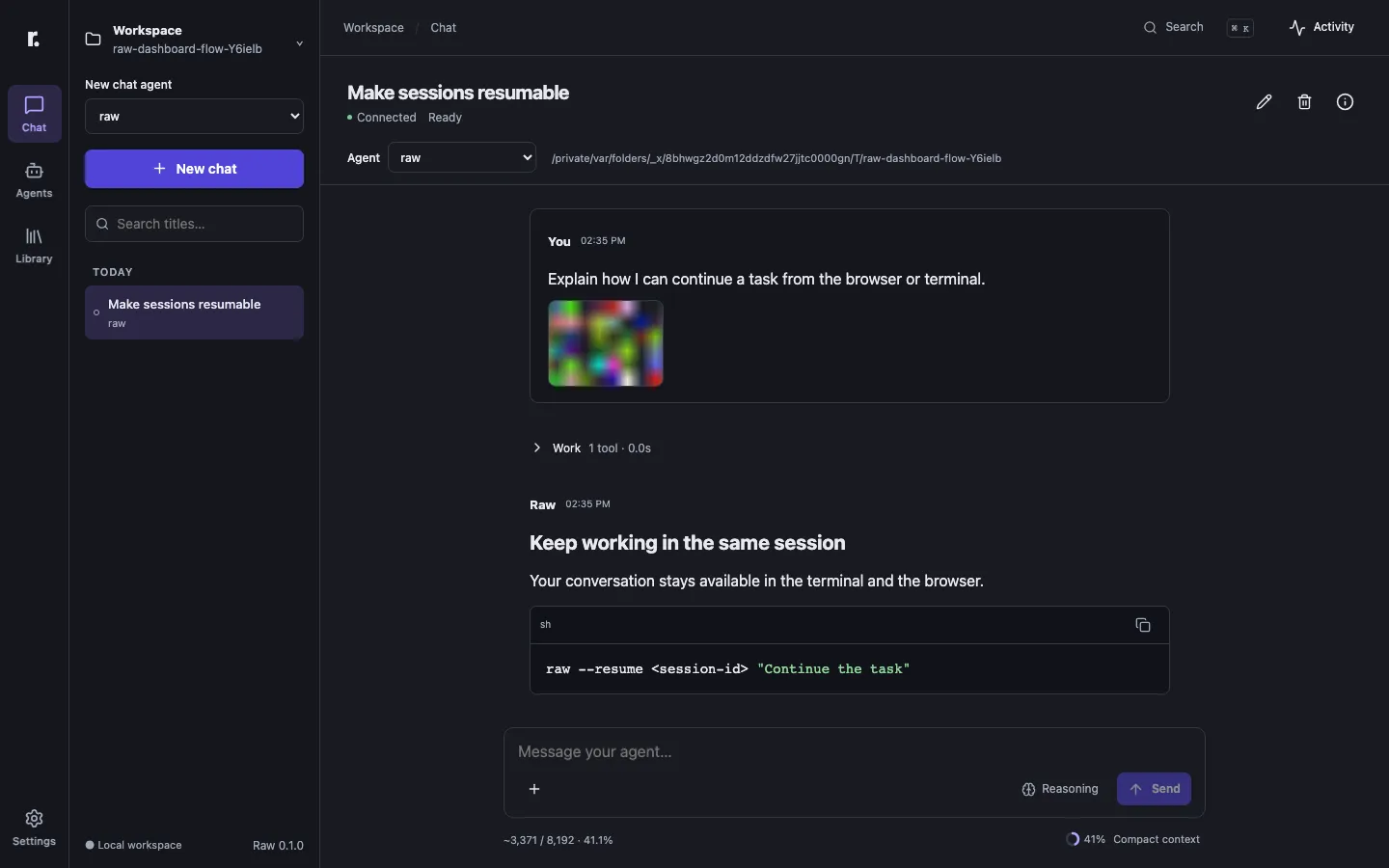
The light theme uses the same layout:
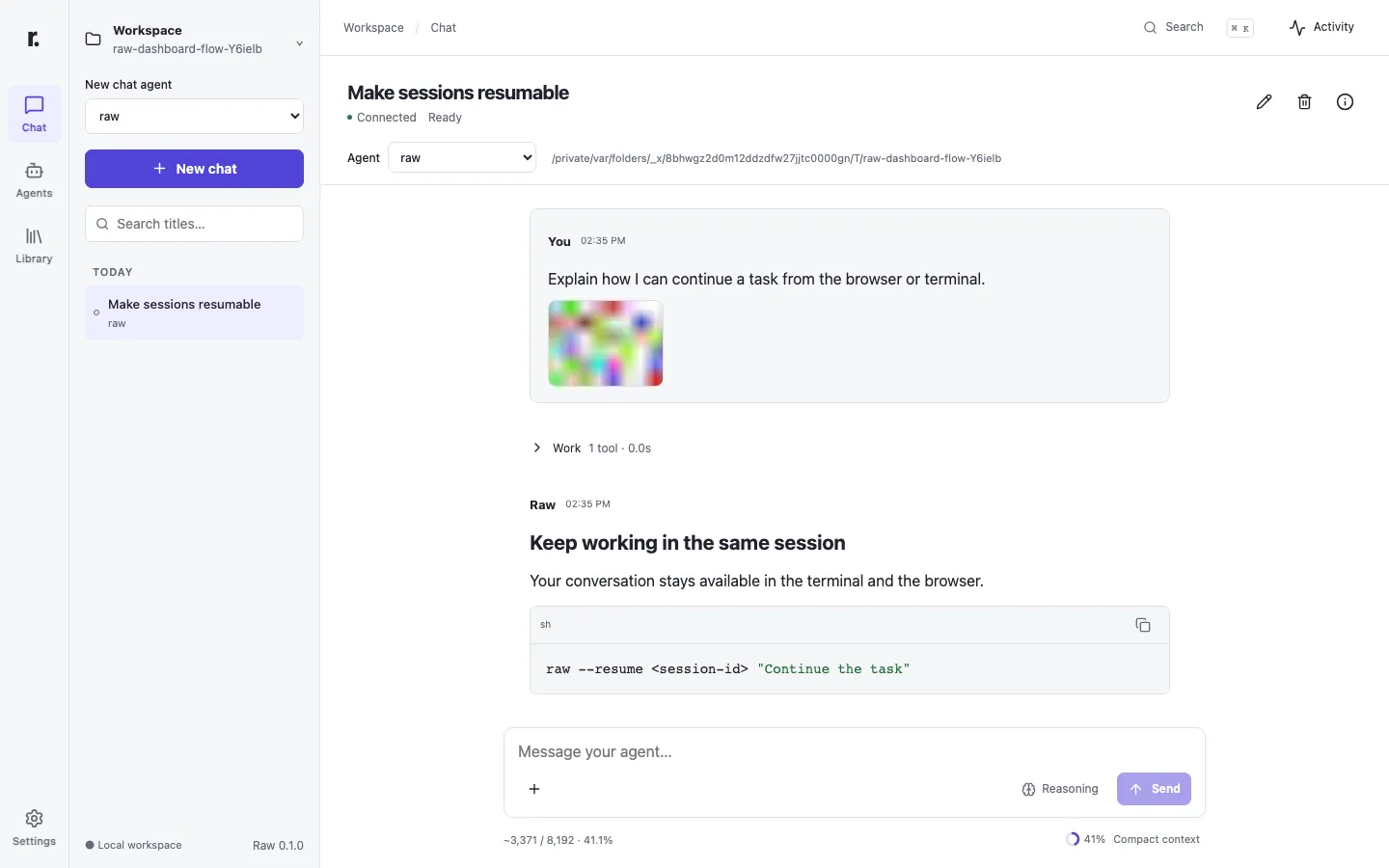
Appearance preferences such as theme and density are stored in this browser only. They do not change Raw’s config or the model context.
Choose a workspace and an agent, then create a chat. Raw does not start a model call until you send your first message.
- Send. Press Enter to send. Press Shift-Enter for a new line. The Chat preference in Settings can require Ctrl/Cmd-Enter instead.
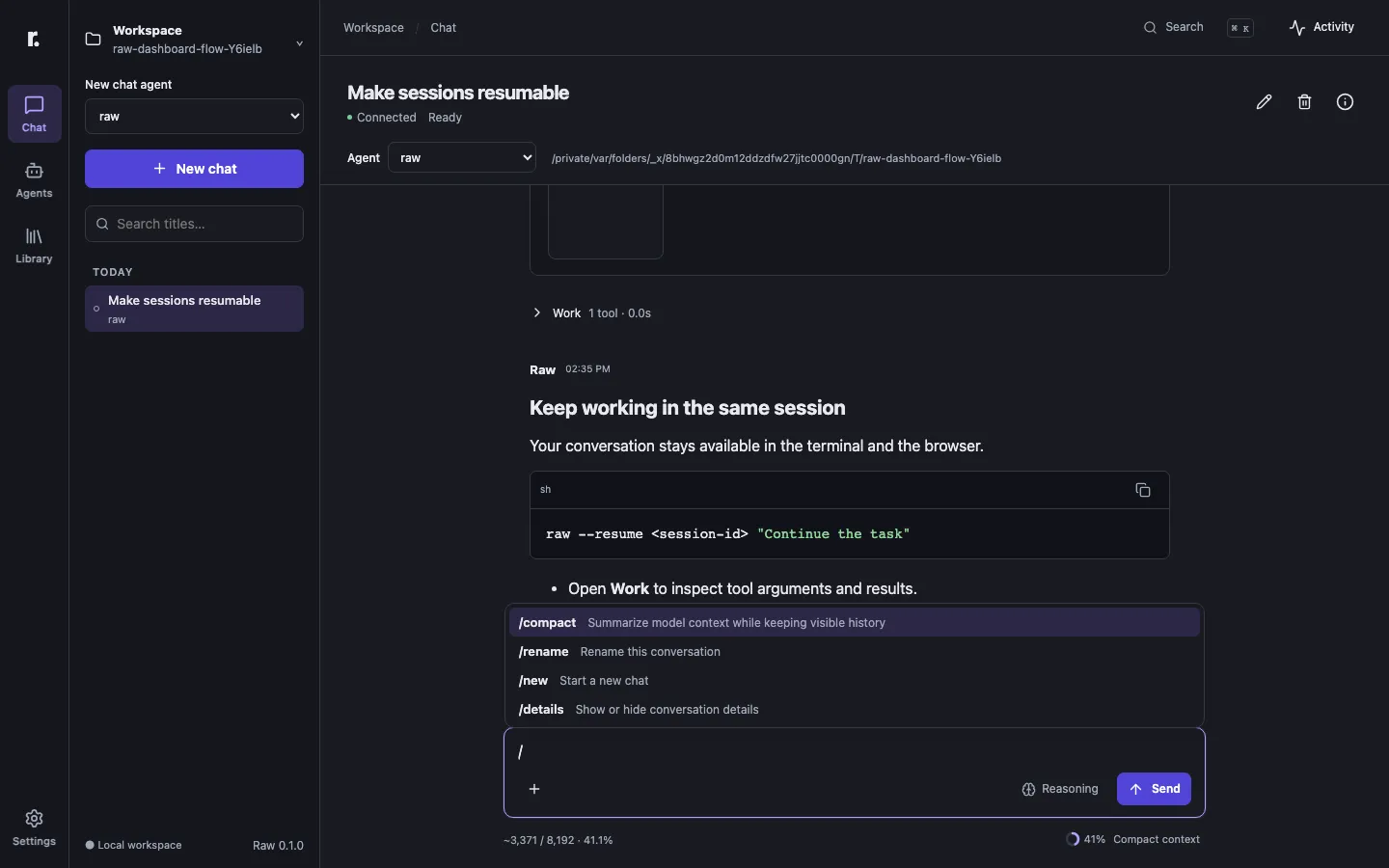
- Commands. Type
/at the start of the message to open the command list. Use the arrow keys and Enter to choose. The built-in commands are/compact,/rename,/newand/details. Skills from the selected agent are listed too. Choosing a skill inserts a sentence that asks the agent to use it, which you can complete. - Attachments. Use the
+button to upload an image, reference a workspace file, or insert a command. You can also paste or drop images onto the composer. Uploaded images are kept for 30 minutes and sent when the turn starts. A file reference is a workspace-relative path and cannot point outside the workspace. - Images and text-only agents. If the selected agent’s model cannot read images, Raw still accepts the turn. The model receives a text placeholder, and the image remains in the saved chat.
- Reasoning and service tier. When the provider has reasoning settings, a control in the toolbar sets them for the next turn only. It does not change the agent’s configuration.
- Stop. Stop cancels the running operation, including tool execution and approval waits.
Approvals
Section titled “Approvals”When a tool call needs approval, the chat shows Allow once and Deny next to that call. The answer applies only to that call. For how rules create approval requests, see Permissions.
Closing a tab
Section titled “Closing a tab”A run continues on the server if you close the tab or refresh the page. Reopen the dashboard to see its progress. Use Stop to cancel a run explicitly. Stopping the dashboard process also cancels the work it owns.
Hooks and history
Section titled “Hooks and history”Hooks that the agent selects appear in the conversation as receipts. Each receipt shows the hook ID, the event and the outcome. Hook output is status information and is not sent to the model as assistant text.
Context and details
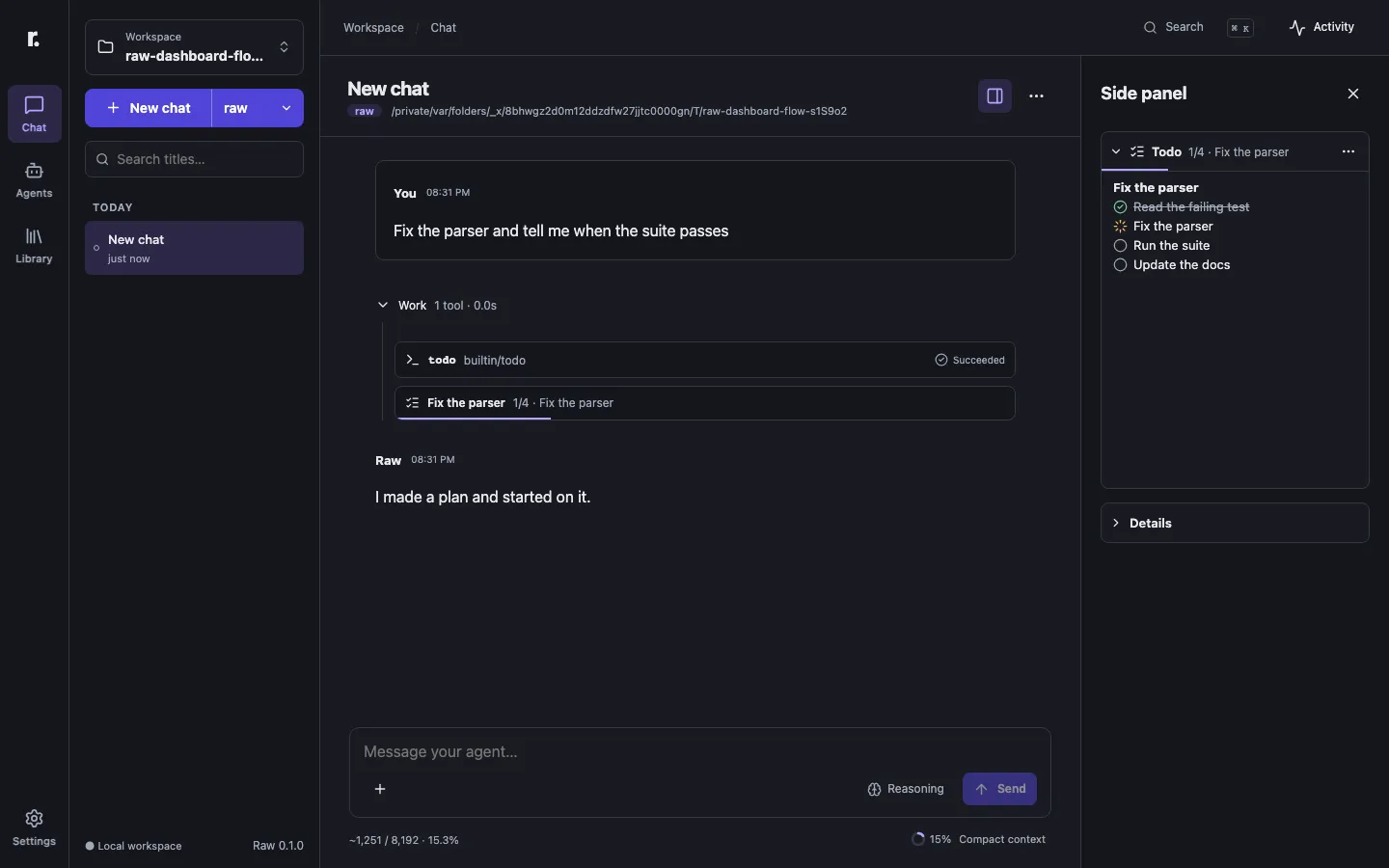
Section titled “Context and details”Open the side panel with the panel button in the chat header. The Details section shows:
- current tokens, the context window and the percentage used,
- last-turn and session usage,
- cache measurement coverage,
- the current summary, and
- a copyable
raw --resumecommand for continuing the session in the terminal.
The context bar compares the estimate with the agent’s compact.trigger_tokens when one is set. The number is an estimate unless the provider reported it. See Context and compaction.
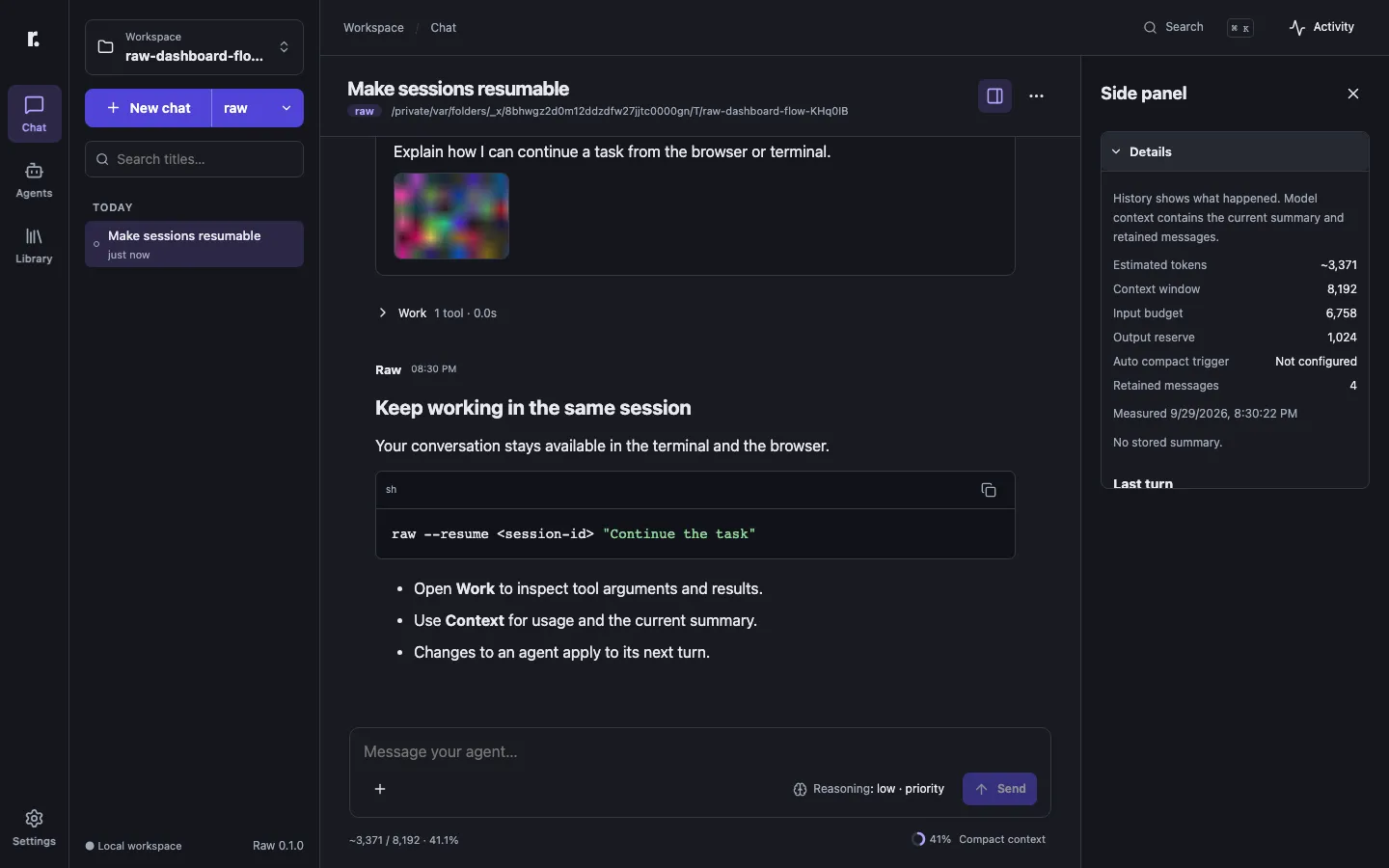
The side panel also shows tool panels from selected tools and MCP servers. Each panel is a collapsible section.
Workspaces
Section titled “Workspaces”The workspace switcher lists the current workspace, your pinned workspaces and recent ones. Each row shows the folder name, a shortened path, the number of chats and a Running badge when a chat is active.
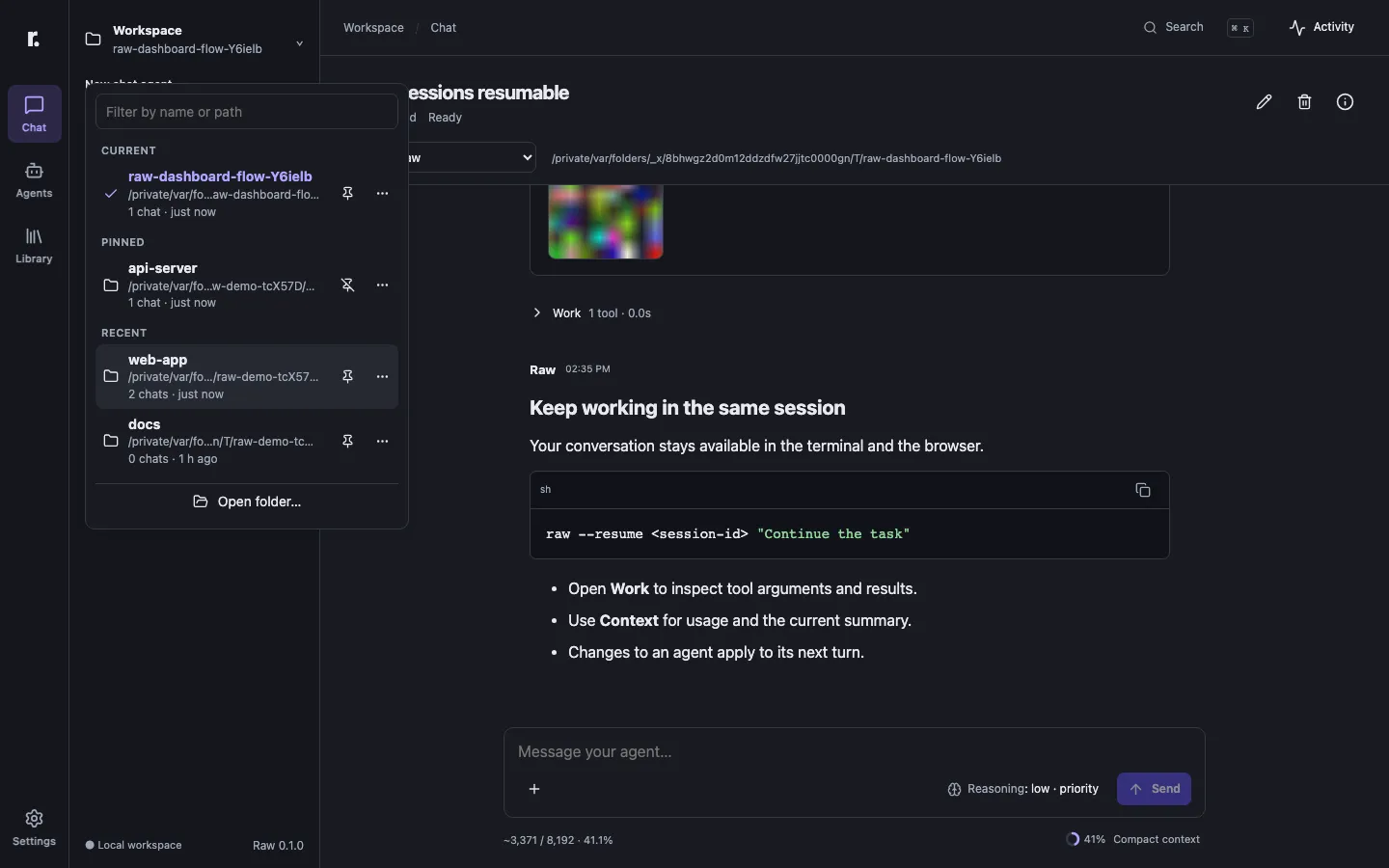
- Filter. Type to narrow the list by name or path. Use the arrow keys and Enter to choose a row.
- Pin. The pin button on a row keeps it at the top.
- Open folder. Browse folders from the bottom of the switcher, or type a path and choose Open this folder. The folder browser lists folders only and never creates, renames or deletes anything.
- Missing folders. A folder that no longer exists is marked Missing. You can remove it, but you cannot choose it.
- Remove from recent. This only hides the entry in this browser. It does not delete chats or files.
Pins, removals and opened folders are stored in this browser, not in the config file or the session store. Choosing a workspace changes the relative paths that Raw uses. It does not change your operating system permissions.
Agents
Section titled “Agents”The Agents page lists each agent with its model, the number of tools and skills it selects, and which one is the default. From a row you can start a new chat, set the default, duplicate, rename or delete an agent. Deleting an agent keeps its sessions.
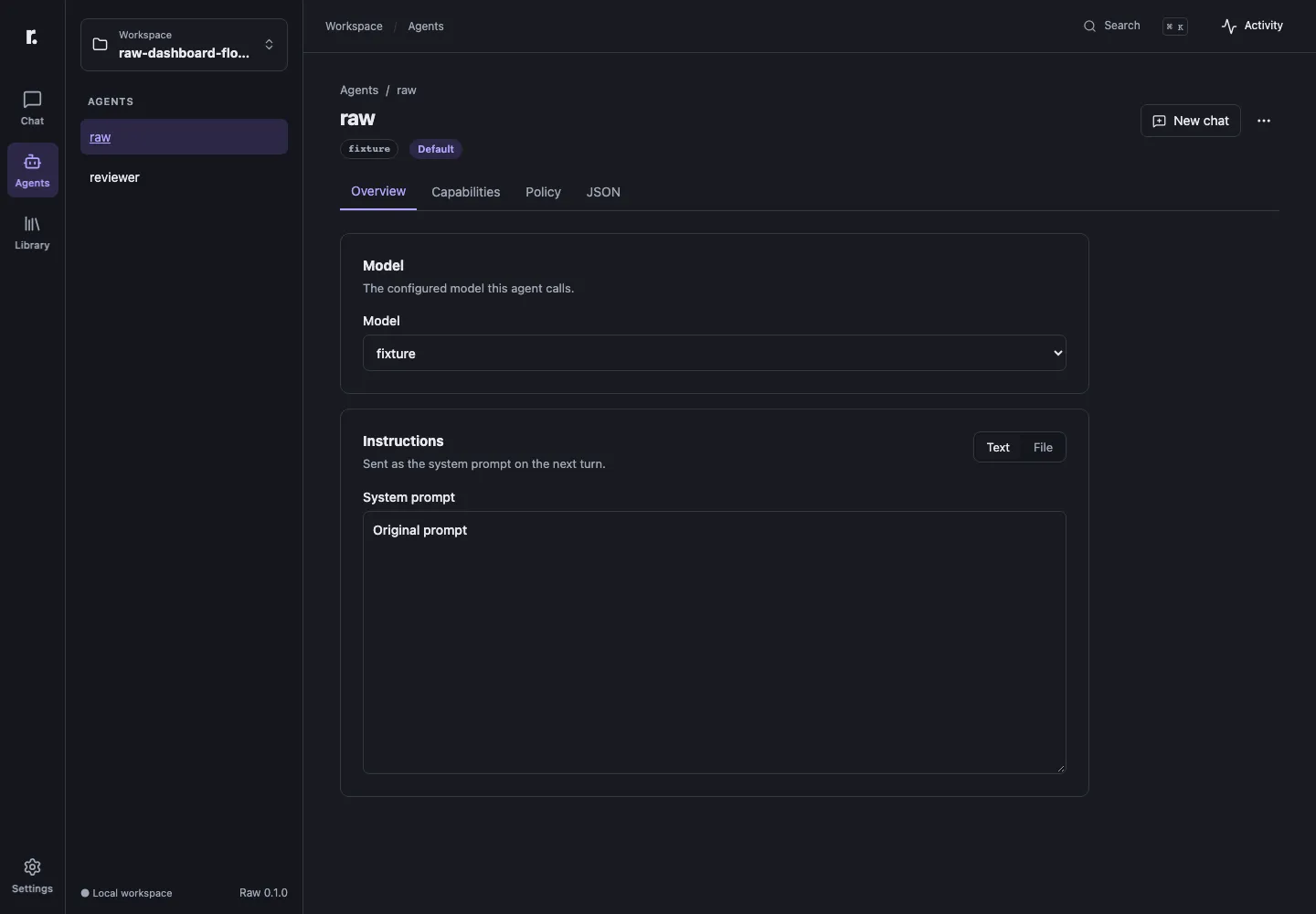
The agent editor has four tabs:
- Overview sets the model and the system prompt. Choose Text for a literal prompt, or File for a Markdown file relative to the config.
- Capabilities orders the tools, skills, hooks and variables the agent uses. Selecting a skill also adds the skill tools it needs.
- Policy holds the ordered tool rules and a sample test that evaluates them without running the sample command.
- JSON edits every agent field, including request, cache, compaction and package overrides.
Drafts stay in the editor when you switch tabs. Save with Ctrl/Cmd-S or the save bar. Changes apply on the next turn, including in an existing session. Saving never cancels a running operation.
Library
Section titled “Library”The Library page groups tools, skills, hooks, variables, MCP servers and packages.
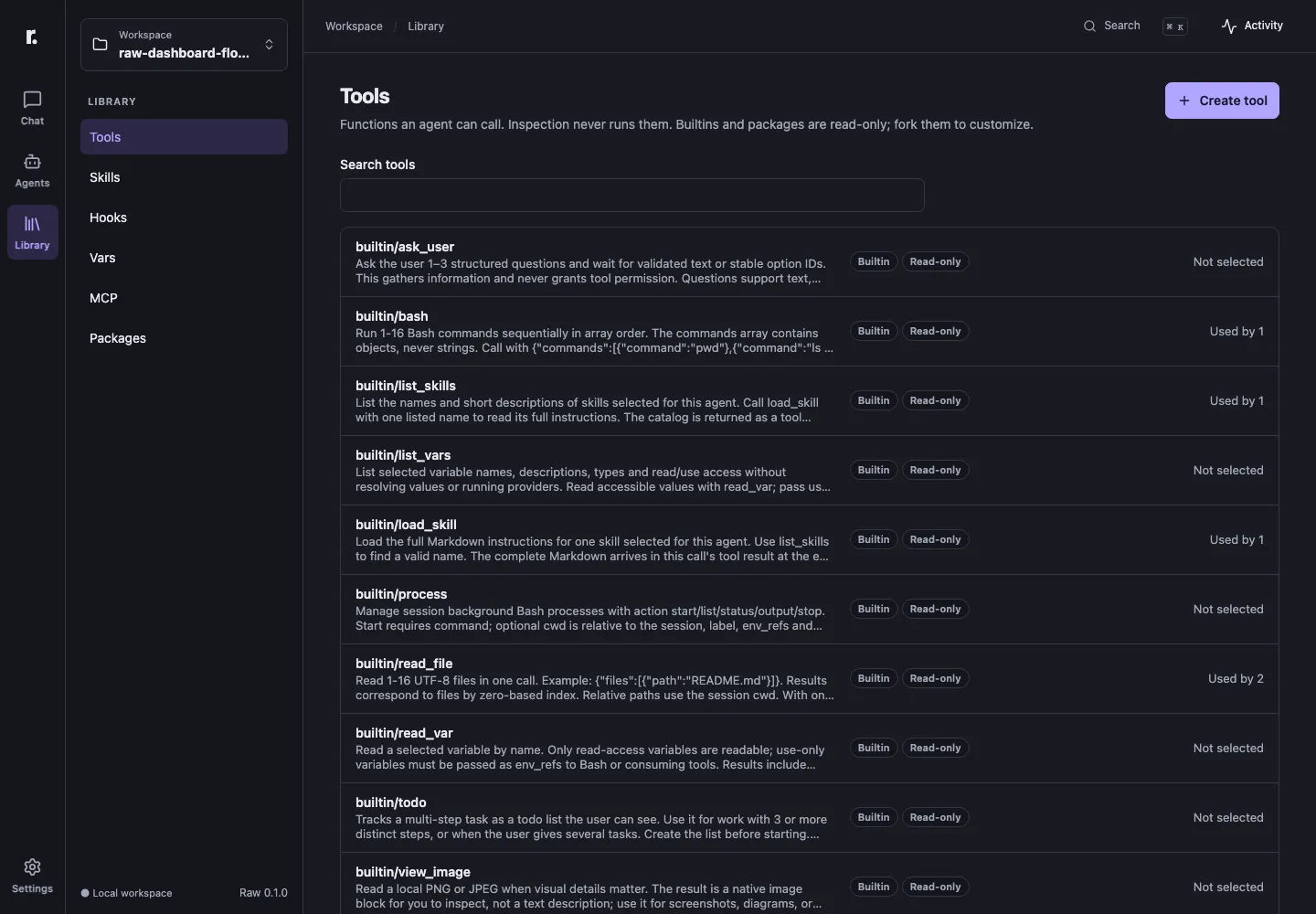
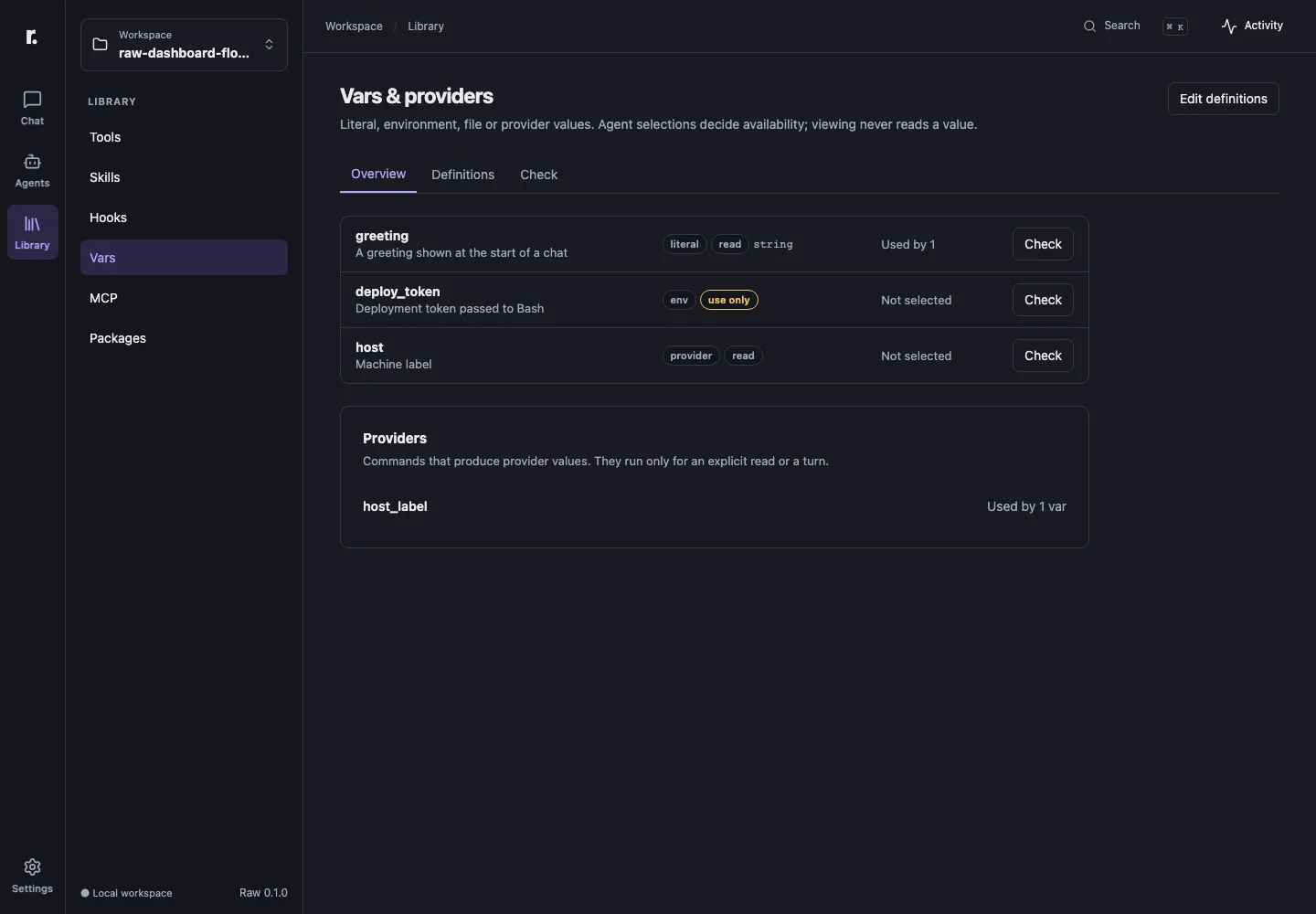
Each list shows every component with its source (Builtin, Local, Agent, Package or Linked) and the number of agents that use it. Built-in components are read-only. Choose Fork to local to create an editable copy.
Variables and MCP servers show safe summaries only. Values, environment variable names, paths, commands, URLs and headers are never displayed. Running a check or discovery is always an explicit action on that page. Opening the Library does not run a provider or connect to an MCP server.
Share packages
Section titled “Share packages”Packages are portable bundles of agents and their components. See Packages for the format.
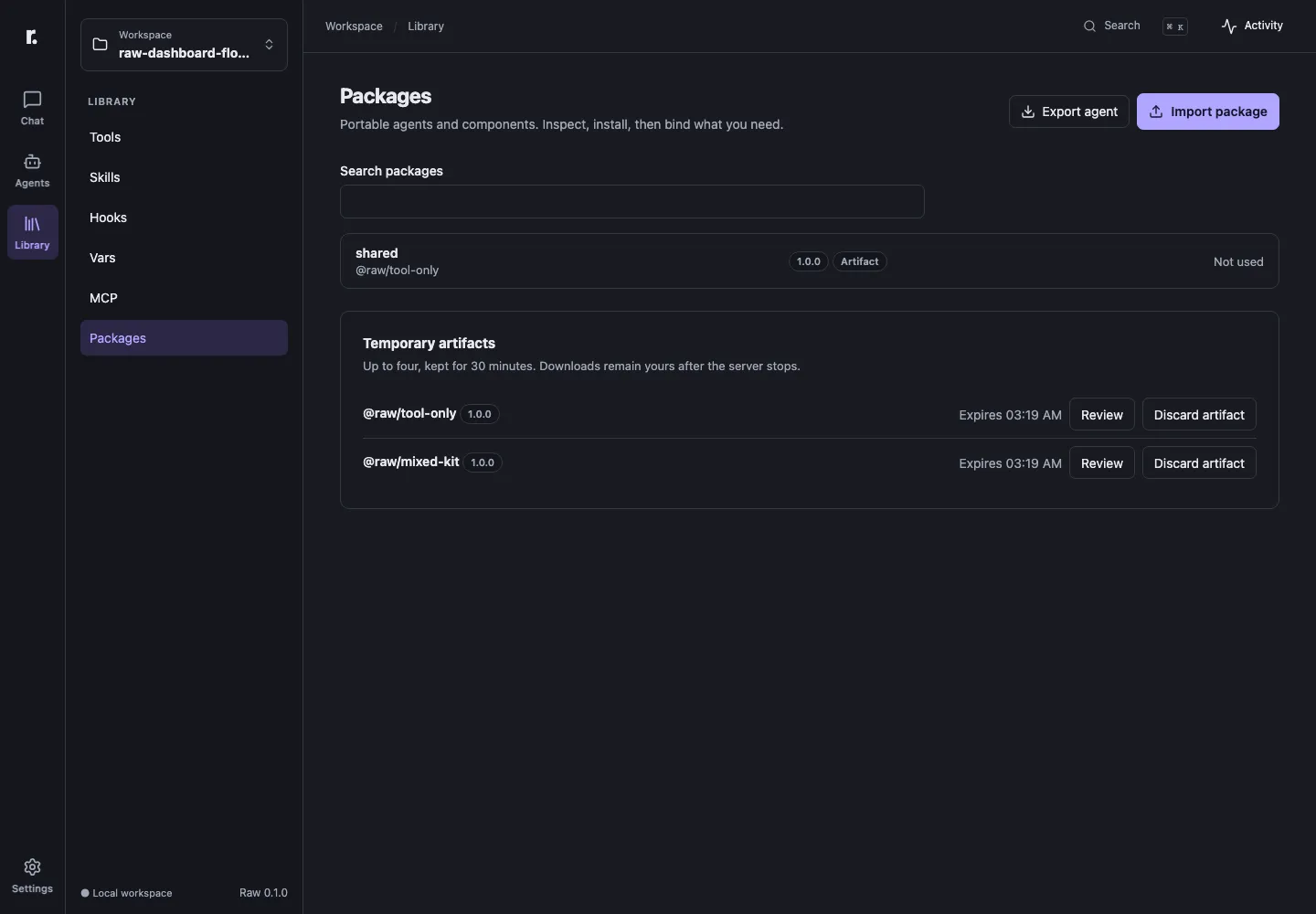
Use Library → Packages:
- Import package inspects a local source path or an uploaded
.rawpkgfile. Review the exports, the inputs a recipient must supply and the required capabilities before you choose an alias and install. Inspecting and installing do not select an agent or changedefault_agent. - Export agent produces a downloadable archive. Literal variable values and external files are listed as recipient decisions, so review the report before you share the archive.
- Use agent creates a local agent from an installed package, using your model and inputs.
- Update, Fork, Link and Remove manage an installed package. Removing a package names the agents that still use it.
Resume the same session to use an updated package on its next turn.
Commands and background jobs
Section titled “Commands and background jobs”The Commands section in the sidebar follows foreground Bash calls and background jobs across turns. For each command it shows the working directory, elapsed time and the result. Open Output to read the terminal output in pages. Stop on a background job uses the same policy and approvals as a tool call, and it can be used during a model turn.
Keyboard shortcuts
Section titled “Keyboard shortcuts”- Ctrl/Cmd-K opens navigation and session search.
- Ctrl/Cmd-comma opens Settings.
- Ctrl/Cmd-S saves the active editor.